Current version v2.2.92 · Mac, Windows, Android, and Linux versions are free
Choose a package for your device
Downloads for all platforms
Downloading on one device for installation on another? Choose the option for the device you’ll install Shadowrocket on; you don’t need to follow the “Current device” label. The same operating system name doesn’t mean installers are interchangeable: check the chip for Mac, the architecture for Android, and the package format used by your Linux distribution. Desktop and Android installers are available from /dl/shadowrocket/ on this site.
iPhone / iPad
$2.99 one-time purchase. Get it from the App Store. Mac, Windows, Android, and Linux versions are free.
iOS / iPadOS 13.0 or later; see the App Store page for system requirements.
iPhone and iPad use the same App Store listing, so there’s no separate iPad version to find. Check the developer and app ID in the store, then confirm the price and compatibility shown for your account’s storefront.
Free. This site offers separate .dmg downloads for Apple silicon and Intel. The iPhone / iPad version costs $2.99 once on the App Store.
macOS 12 or later.
Not sure which version to choose? Open About This Mac and check Chip or Processor. Choose Apple silicon if Chip shows Apple silicon, or Intel if Processor shows Intel. After downloading, open the disk image, move the app to Applications, and launch it.
Free. This site provides a 64-bit .exe installer. The iPhone / iPad version costs $2.99 once on the App Store.
System architecture: x64.
Go to Settings → System → About to check System type and confirm your Windows and processor architecture. Wait for the browser to finish downloading before opening the file. If SmartScreen appears the first time you launch it, see the installation steps below.
Free. This site provides an arm64 .apk. The iPhone / iPad version costs $2.99 once on the App Store.
Device architecture: arm64, supported by most recent compatible Android phones and tablets.
Download using your system browser. When the download finishes, open the installer from the browser’s downloads or your file manager. If Android asks you to grant permission, first check which app the prompt identifies as the source, then grant permission only to the app you’re using to open this file.
Free. This site provides three package formats. The iPhone / iPad version costs $2.99 once on the App Store.
System architecture: x86_64 (shown as amd64 in .deb filenames).
Choose .deb for Debian or Ubuntu, .rpm for Fedora or openSUSE, or check whether your distribution can run the x86_64 AppImage. Download only the format that matches your system; you don’t need all three.
Desktop and Android installers are unsigned, so your system may ask you to confirm before opening them. First, recheck the source, file format, and device architecture on this page, then follow the steps for your platform. These steps apply only to the file you’re installing or the app you’re using to open it; you don’t need to disable system-wide protections. Stop and investigate if your system reports a threat or if your organization or school manages the device and its policies prohibit installation. Don’t try to bypass restrictions.
Platform
Installation or permission steps
Check before continuing
iPhone / iPad
Buy or redownload Shadowrocket from its App Store product page, then open it from your Home Screen. If a system prompt appears the first time you connect to add a VPN configuration, confirm that you just initiated the action in Shadowrocket.
See the App Store page for system requirements. Installing the app and adding a VPN configuration are separate steps; adding a configuration does not import subscription or server details.
Windows
If SmartScreen says “Windows protected your PC,” confirm that you downloaded the x64 installer from this page, then select More info → Run anyway and follow the installer.
If that option isn’t shown, or Windows reports a threat rather than the SmartScreen warning described above, don’t continue.
macOS
If you see “cannot verify developer,” try opening the app once, then go to System Settings → Privacy & Security and select Open Anyway for the app. If you see “damaged,” download it again from this page and check the architecture. Only after confirming the source, ruling out an incomplete download, and placing the app in the specified location, run xattr -cr /Applications/Shadowrocket.app in Terminal for this app, then open it again.
On macOS 12, go to System Preferences → Security & Privacy. The Terminal command removes extended attributes from the specified app; it won’t repair a damaged file. Don’t use it on apps from unknown sources or on the entire Applications folder.
Android
Open the .apk from your browser or file manager. Follow the prompt to Allow installation of unknown apps, enable permission for the app opening this file, then return to the installer and continue.
Settings may have slightly different names on different devices. After installation, you can return to the same screen and revoke permission for that source. There’s no need to enable it for other apps.
Linux
In the directory containing the installer, you can run chmod +x ./Shadowrocket.AppImage before launching an AppImage. On Debian or Ubuntu, run sudo apt install ./filename.deb. Open .rpm files with your distribution’s package manager.
Replace the filename in the command with the actual downloaded name, keeping the ./ prefix. If the package manager reports an architecture mismatch, return to the platform section and choose another package. If it reports missing dependencies, check which dependencies are missing and resolve them using your distribution’s recommended method.
For iPhone / iPad only
App Store storefront and account region
Shadowrocket isn’t available in the mainland China App Store. Whether you can view the product, buy it, or redownload it depends on the country or region of the Apple Account used for Media & Purchases—not your device’s language, time zone, or physical location. Even if you open the US product link from this page, the App Store handles your request according to your account’s storefront.
To check your region on iPhone or iPad, go to Settings → Apple Account (your name at the top) → Media & Purchases → View Account → Country/Region. If you need to change your account’s region, select Change Country or Region on that page and follow Apple’s instructions. Your balance, active subscriptions, or payment method may affect whether you can change regions; follow the requirements shown on the page.
If the product link opens but says the app isn’t available in your country or region, check your account region first. If the product page loads but the download button is unavailable, check device compatibility and any account messages. These are different issues; don’t judge by search results alone or substitute a similarly named listing.
Before you buy
Developer, official icon, and app ID
Check these three details on the App Store
Developer: Check the product page for Shadow Launch Technology Limited. Verify the developer name rather than relying on whether a search result starts with Shadowrocket.
Icon: The official icon is a rocket outlined in blue-purple on a white background. Use it as a quick visual check, but don’t rely on appearance alone—also verify the developer and app ID.
App ID: The product link should end in id932747118. If you opened the listing from search, check the full link. A different ID means it isn’t the product listed here, even if the name or icon looks similar.
The US App Store price for iPhone / iPad is a one-time $2.99; Mac, Windows, Android, and Linux versions are free. Don’t mistake a free App Store listing with the same name for the desktop or Android version. Download desktop and Android installers from /dl/shadowrocket/ on this site, not from unknown sources.
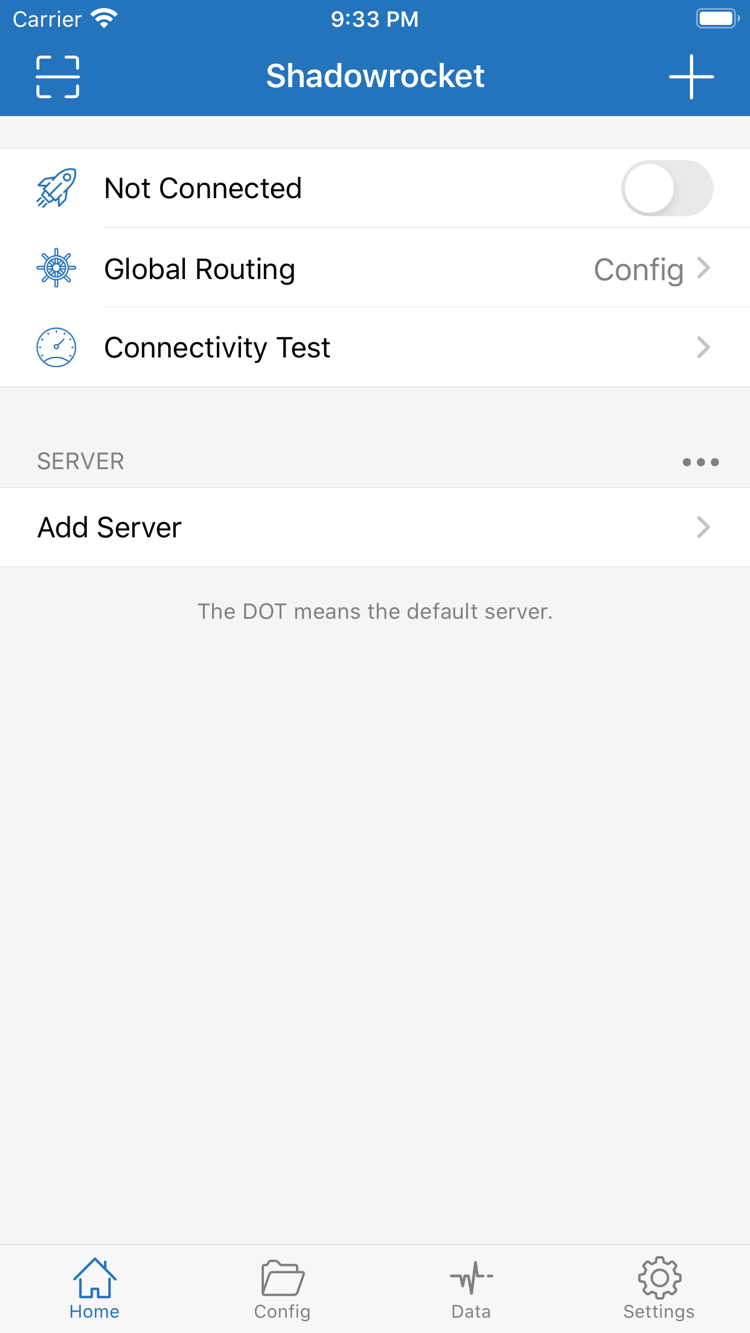
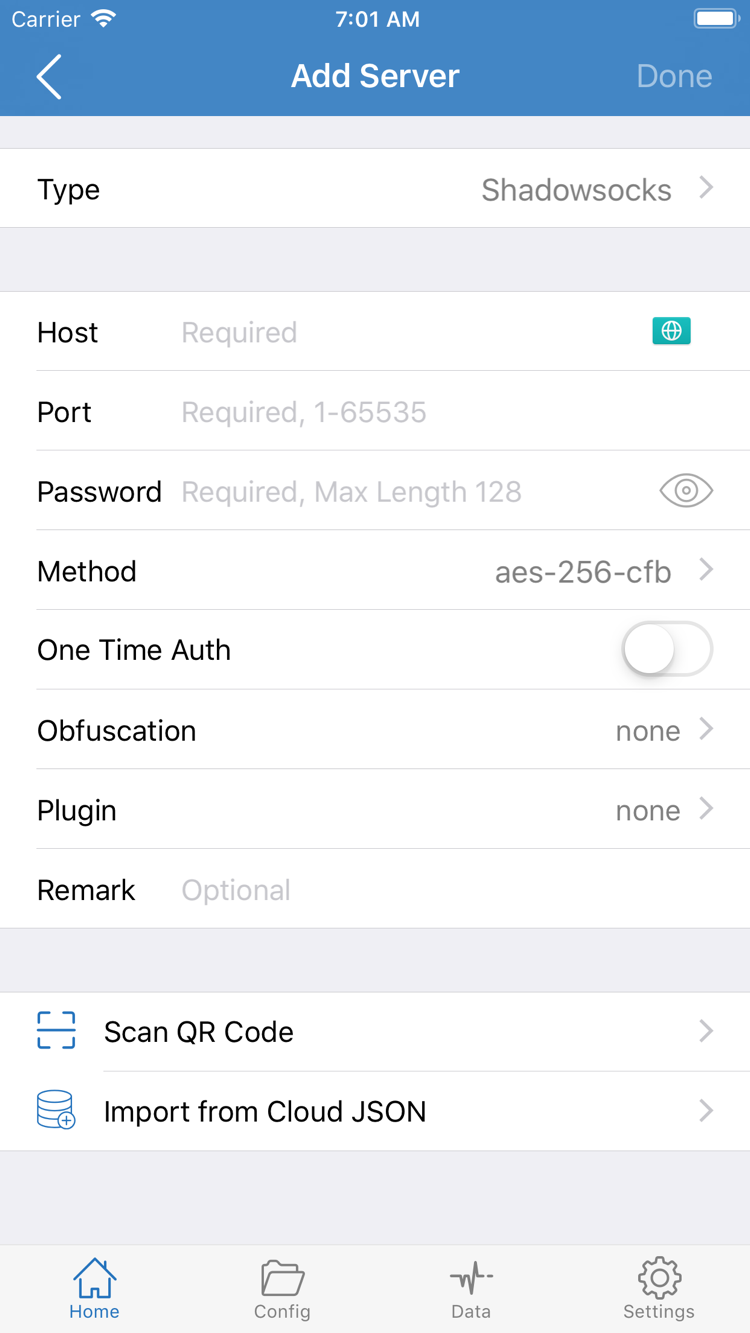
The screenshots on the right were uploaded to the App Store by the developer and show where to find Home and Add Server. Your interface may vary with system appearance, app settings, and connection status. Screenshots of the installed app don’t replace the three checks you should make before purchasing.
Home · Check the connection switch, Global Routing, and SERVER.Add Server · Check the fields and import options when adding server details.
Reinstall
Switch devices and restore purchases
On your new iPhone or iPad, make sure Media & Purchases is signed in with the Apple Account used for the original purchase. Open the App Store, tap your account photo, go to Purchased, find Shadowrocket, and download it again. If you can restore it from the original account’s purchase history, you won’t have to pay again. One purchase is shared between iPhone and iPad using the same Apple Account.
If you see a price button instead of a download option, return to your account page and check the account and purchase history, then verify the storefront and product ID. Purchase history restores the app itself, not your existing subscription, server details, or Config. Make sure you have your usual configuration details, then import them on the new device and test the connection.
For a new Mac, Windows, Android, or Linux device, download the installer again from this page for its operating system and architecture; no mobile purchase receipt is needed. To update, check the App Store on iPhone or iPad. For other platforms, choose the matching installer in the download section above.
Two ways to get it
App pricing and connection service costs
iPhone / iPad: The US App Store price is a one-time $2.99 purchase; there’s no monthly fee for the app. Prices and currencies in other storefronts are shown on the product page for your account’s region.
Mac, Windows, Android, and Linux: Shadowrocket is free to download from this site. The Apple silicon and Intel Mac versions are part of the same download option; choose the one that matches your hardware.
A one-time app purchase does not include a connection plan. This is the official Shadowrocket website and manual. It does not provide, sell, or recommend nodes or subscriptions. After installing the app, you’ll need to import your own subscription or enter your own server details on every platform. Your app purchase or download status does not change the validity of your connection service or activate one automatically.
Download and install
Frequently asked questions
Can I use Shadowrocket on a computer or Android phone?
Yes. The iPhone and iPad version costs $2.99 once on the App Store. Mac, Windows, Android, and Linux versions are free. Choose the download for your device: select the right Mac chip, the 64-bit Windows installer, the arm64 Android package, or the Linux format for your distribution.
Which Mac version should I download: Apple Silicon or Intel?
Open About This Mac from the Apple menu. If Chip shows Apple silicon, choose the Apple silicon version; if Processor shows Intel, choose the Intel version. Both packages have the same macOS requirements. Choose based on the Mac where you’ll install the app, not the device you’re browsing on.
What should I do if Windows says “Windows protected your PC”?
First, confirm that the file is the Windows installer downloaded from this page. Once you’ve verified its source and confirmed that this is a SmartScreen warning, select More info → Run anyway. Stop if the source is unclear, Windows reports a threat, or your device policy does not allow you to continue.
What should I do if Shadowrocket doesn’t appear in App Store search?
Open the App Store product page from this site and check that the app ID is 932747118. Then check the country or region for the Apple ID used for Media & Purchases. Shadowrocket isn’t available in the mainland China App Store. If the product page says it’s unavailable in your storefront, don’t treat a similarly named search result as a substitute.
Will I have to pay again if I get a new iPhone or reinstall the app?
Sign in with the Apple Account used for the original purchase and download Shadowrocket again from your App Store purchases. You won’t be charged again. The iPhone and iPad version is a one-time $2.99 purchase on the App Store; Mac, Windows, Android, and Linux versions are free. Purchase history is separate from connection settings, so check your own subscription or server details when switching devices.
Can I install Shadowrocket on an iPad?
Yes. Shadowrocket uses the same App Store listing on iPhone and iPad, and one purchase is shared across devices using the same Apple Account. Check your iPadOS version before installing; see the App Store page for the current system requirements.